







WebCam
Now you are able to arrange for a webcam to be installed in your cat's suite. The webcam allows you to have a "virtual visit" with your cat from anywhere in the world. All you need is internet access and a smart phone. Imagine the peace of mind you will experience when you can logon any time you want and see what your cat is doing!
Update: We now have high-speed internet avaiable so live video will be even more responsive than before!
Cameras are included in all VIP rooms and can be added to Deluxe and Economy rooms for only $10.00 per day.
Free Camera Viewing SoftwareIP Camera Viewer Lite is FREE software that is available for both android devices and Apple devices. Once installed you will need to configure the software by entering your camera's Make/Model, Host/IP address, Port #, and Logon ID. Detailed instruction are given below. These screenshots are from an android device - the iOS screens are nearly identical.
If you have any trouble or concerns about configuring the IP Camera Viewer software we will be happy to configure it for you - just bring your smartphone with you when you drop off your cat(s).
Camera Setup Instructions for iPhone and Android Phones
First: Download & Install IP Camera Viewer using a link below
Then: Configure IP Camera Viewer to access your camera
Step 1: Launch the IP Camera Viewer Lite Application on your phone
Step 2: Tap phone screen to bring up the icons, then select the Setup Icon
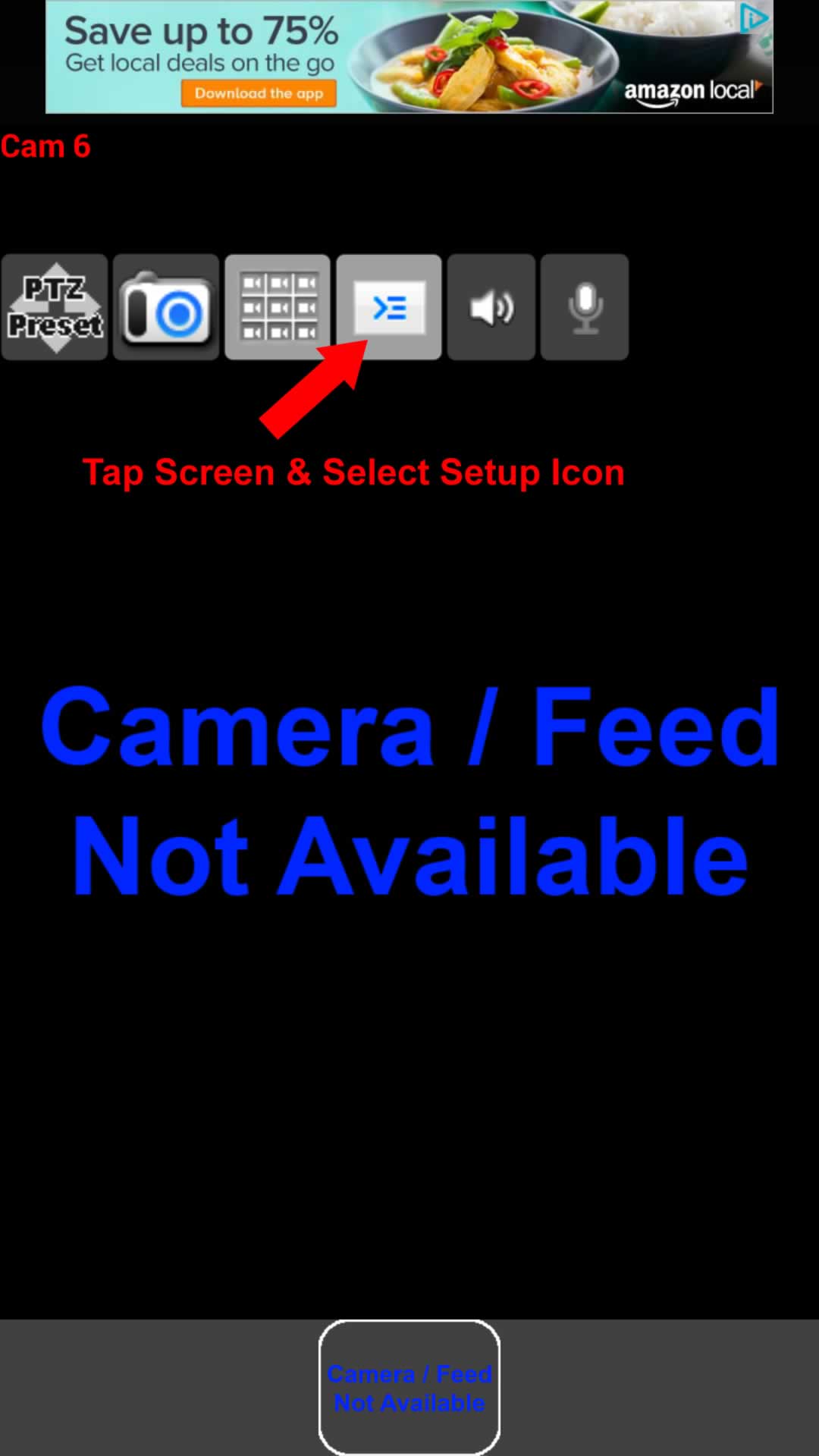
Step 3: Select Manage Cameras

Step 4: Select Add Camera icon at bottom of the screen
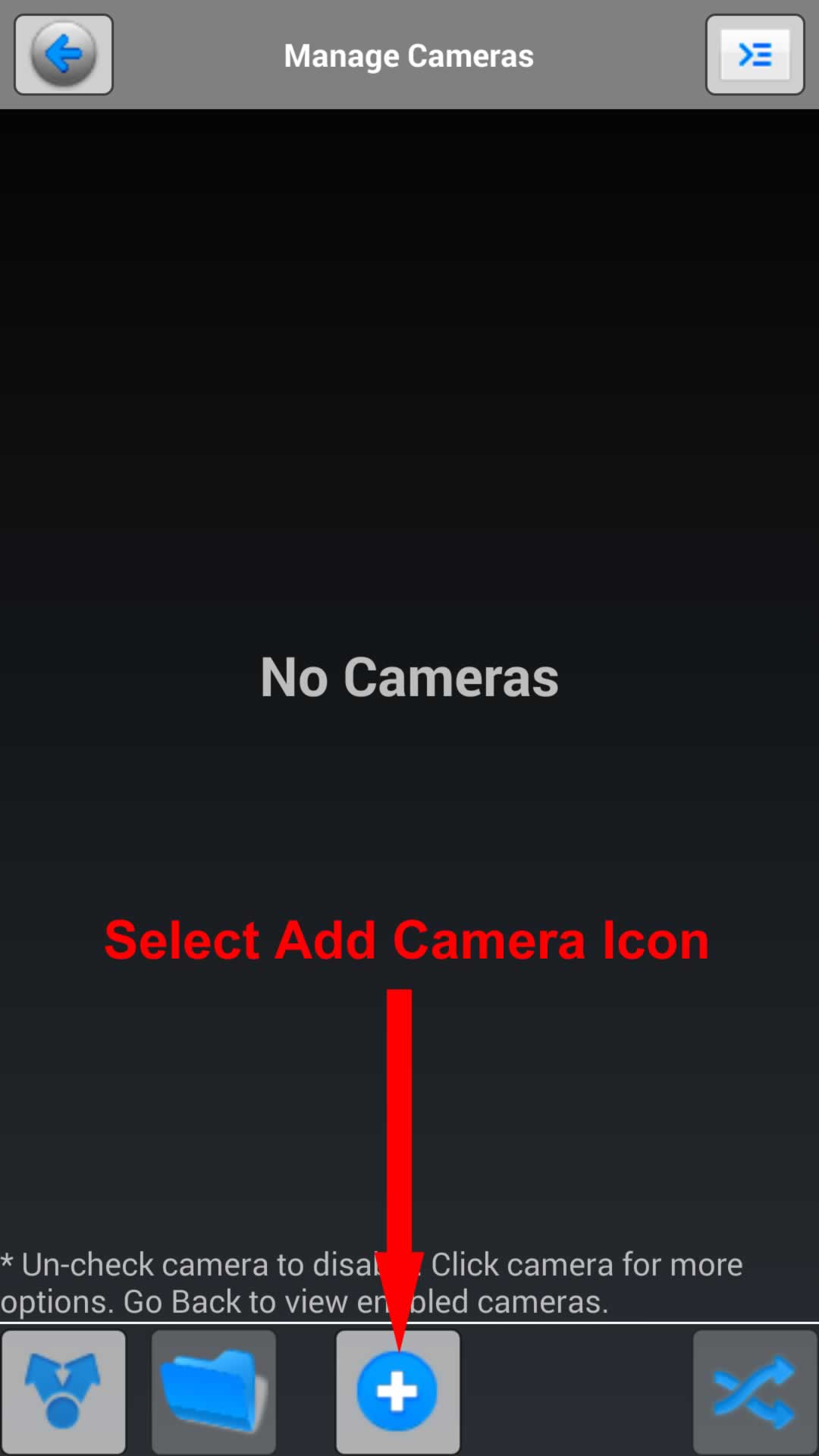
Step 5: Select Camera Type

Step 6: Enter IP Camera information as emailed to you
- Name = Anything you like. We suggest the Room # (e.g. VIP5)
- Make = Foscam or Reolilnk
- Model = As provided in email
- Host/IP = ecl.asuscomm.com
- HTTP Port = As provided in email
- User = As provided in email
- Password As provided in email
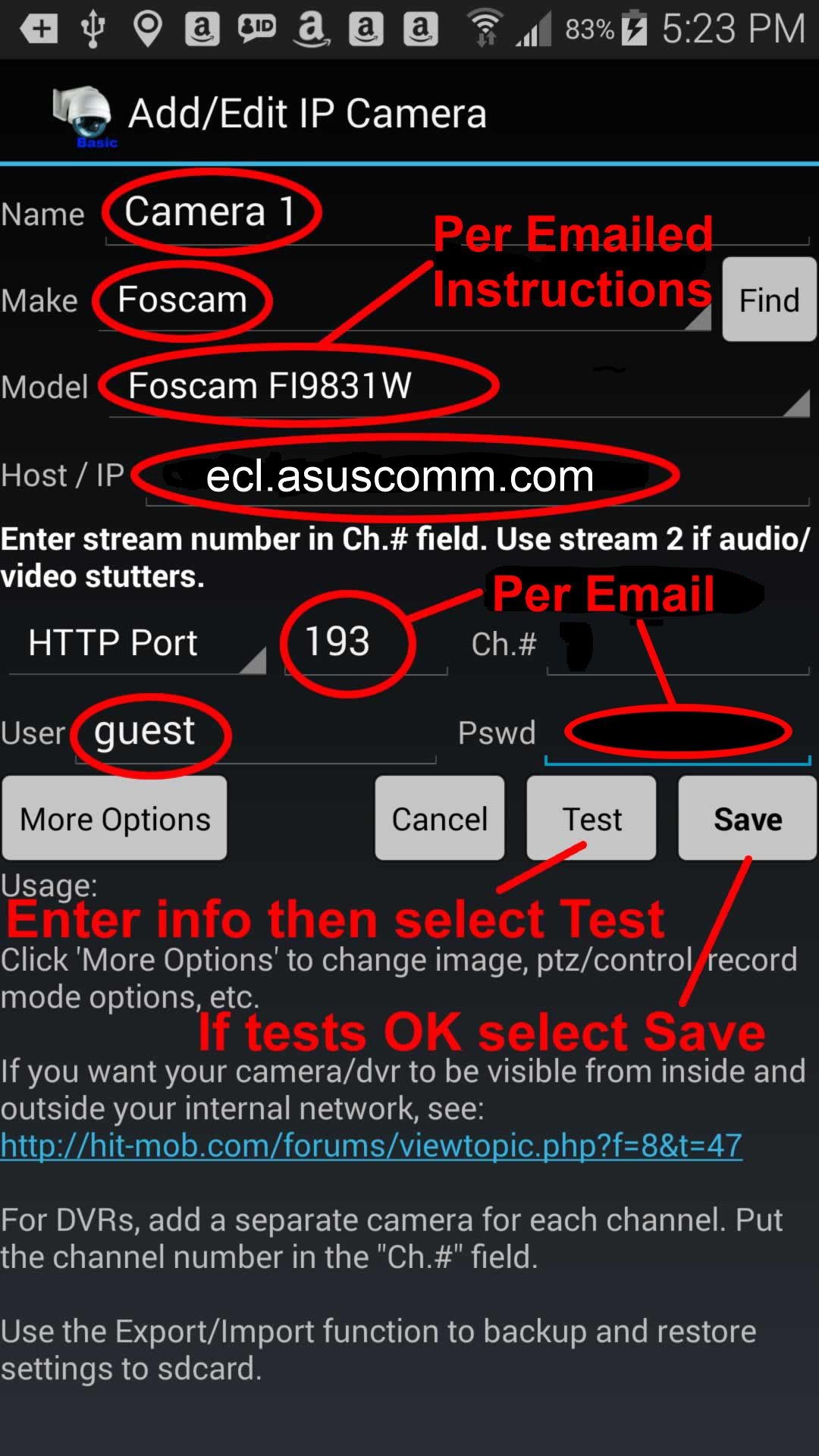
After entering all of the informaion Selecting Test will display a still picture from the camera (it may take a while to apprear). If you see the picture, go ahead and Select Save. If Test fails, check to make sure you have entered all of the information correctly. If all else fails, bring your phone with you when dropping off your cat and we will glady check the software setup and get it working.
Step 7: After selecting SAVE the Back Arrow will take you to the live video screen
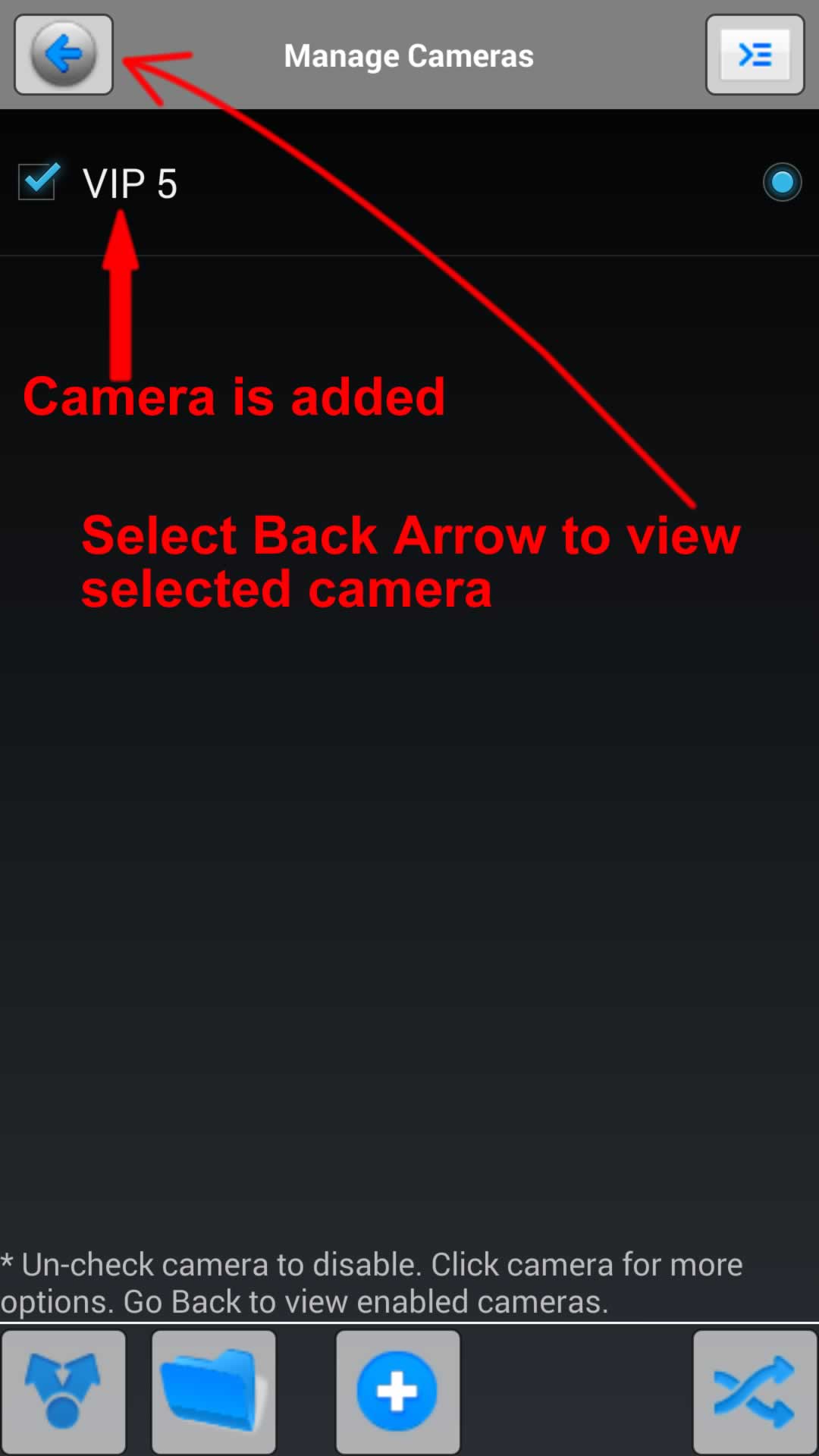
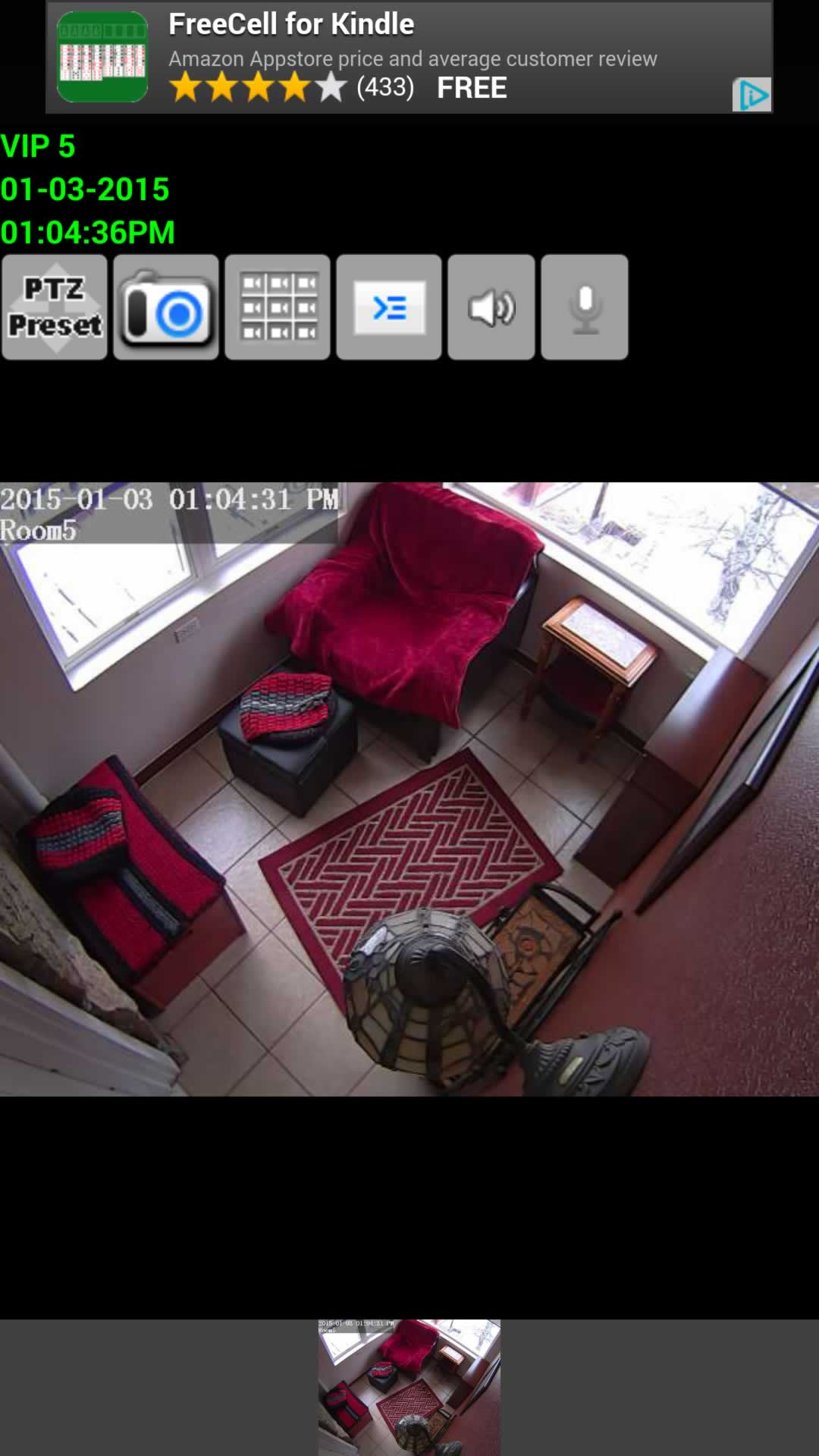
You are now able to view the live camera feed
Kitten Camera Setup
We work with the Evergreen Animal Protection League (EAPL) and adopt kittens on their behalf from our Kitten Room. There is a camera in the room so interested parties can watch our kittens at play (or alseep). To set up the IP Camera Viewer Lite software to view the live kitten camera, follow the instruction above and enter the following information in Step 6.- Name = Kitten Cam
- Make = Foscam
- Model = R4
- Host/IP = ecl.asuscomm.com
- HTTP Port = 9008
- User = guest
- Password = guest1